

Check for Updates
You can check for a newer version of Student Manager from .
If a newer version is available, you can download and update it or read the Release Notes.
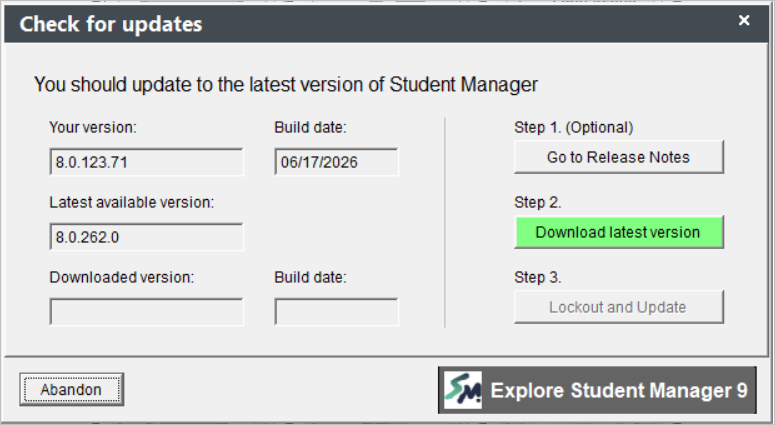
Auto Update
To check for, download, and apply a Student Manager update:
Click the Go to Release Notes button to view version update notes. The system will open the Release Notes in your preferred browser (set in System Preferences).
Click the Download latest version button to download the latest version. The exe will be downloaded to the Updates folder in your Student Manager directory.
Click the Lockout and Update button to open the Administrator System Lockout window. It will check for other users and close them out of the system. When they are all out, it will apply the update and restart Student Manager for you.
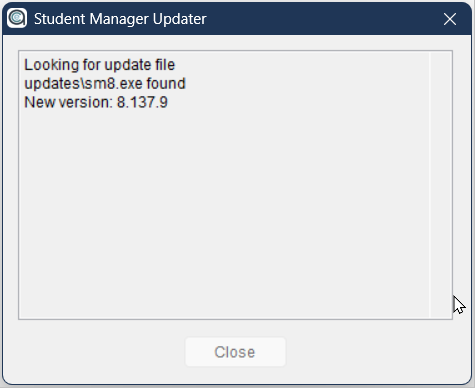
Manual Update
To manually download the update and apply it.
Customer Credentials
Customers will need a current SMA and customer credentials to download update files. If you need the Customer log in credentials, contact your ACEware technician.
- Download ↗️ the sm8.exe.
- Unblock the file, if necessary.
- Use the Administrator System Lockout tool to get everyone out of Student Manager.
- Move the sm8.exe into your Student Manager folder, overwriting the existing file.
Updating Other Student Manager Files
If you are updating from Student Manager 8.0.125 or older (i.e. builds released prior to October 2023), you also need to update some other files that are required for Student Manager. To update the required files:
- Download ↗️ the wwDotNetBridge.zip.
- Unblock the file, if necessary.
- Unzip the files into the Student Manager directory, overwriting the existing files.
Unblocking Files
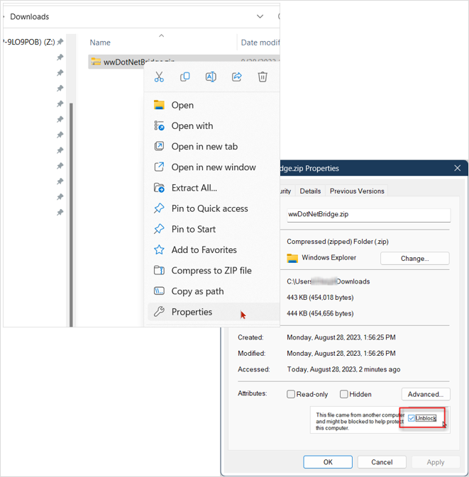
When downloading the sm8.exe or wwDotNetBridge.zip, you may need to unblock the download file before moving the exe/unzipping the files into your Student Manager folder.
To unblock files:
- Right-click the file.
- Choose Properties from the menu.
- Check the Unblock box.
- Click the OK button.
Check for Updates Message
You can enable the Show Update Message if you haven't updated in the last 90 days preference (System Preference) if you want to be notified when new versions are available.
If enabled, Student Manager will check for a new version on Tuesdays, when you log into the system.