

Administrator System Lockout
Before running maintenance routines such as Pack/Reindex or a Backup, you must lock other users out of Student Manager and halt ACEweb. The Administrator System Lockout screen gives you the controls to do both from one place.
To open the screen, select .
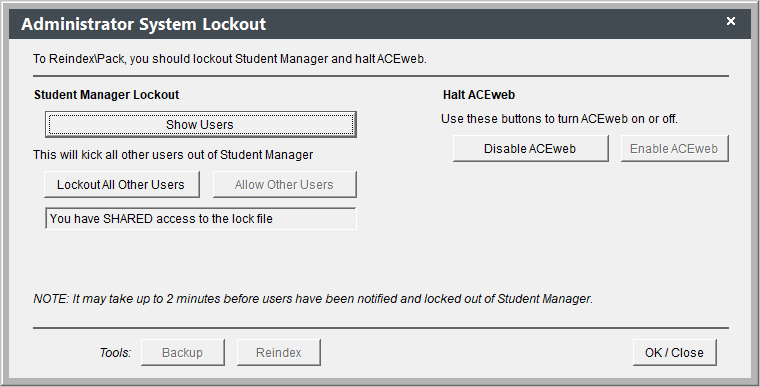
Student Manager Lockout
- Show Users — opens the Show Users list so you can see who is currently logged in.
- Lockout All Other Users — kicks all other users out of Student Manager and prevents them from logging back in.
- Allow Other Users — lifts the lockout and allows users back in. This button is enabled only when a lockout is active.
Note
It may take up to 2 minutes before other users are notified and locked out of Student Manager.
Halt ACEweb
Use these buttons to turn ACEweb on or off so online activity does not interfere with maintenance.
- Disable ACEweb — turns ACEweb off.
- Enable ACEweb — turns ACEweb back on. This button is enabled only when ACEweb has been disabled.
Tools
Once a lockout is in place, the buttons at the bottom of the screen become available:
- Backup — runs a Backup of your data and settings.
- Reindex — runs the Pack/Reindex routine.
Tips
- Warn users first — Because lockout can take up to 2 minutes to take effect, let users know in advance so they can save their work.
- Halt ACEweb too — Locking out Student Manager users does not stop online registrations. Disable ACEweb as well before running a Pack/Reindex.