

Logging Contacts
To log a contact with an individual:
- Open the individual’s record (Name or Faculty).
- If you opened a Name record, select the Comments/History tab. The CRM Contact History window is below the Special Needs and Contact History fields.
- If you opened a Faculty record, select the Other tab.
- Press ALT+F12 to open the Log CRM Entry screen.
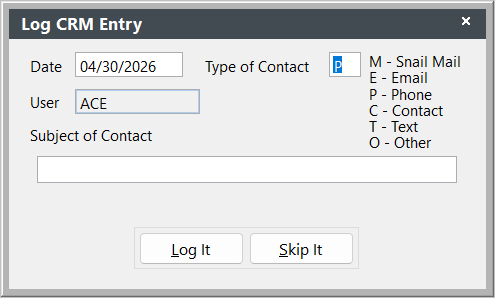
- The current date and user is automatically entered for you and the cursor is placed in the Type of Contact field. Enter the type of contact designation (e.g. P for Phone contact).
- Enter a brief note, up to 60 characters, in the Subject of Contact field.
- Click the Log It button to record the entry.