

Quick Launch Settings
Set your Quick Launch settings on .
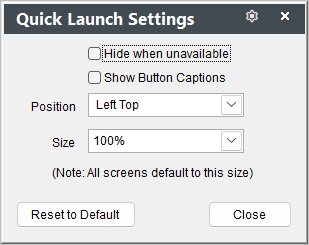
- Hide when Unavailable - if enabled, the Quick Launch toolbar will be hidden when you open screens. For example, if you click Preferences, the toolbar is hidden until you close the Preferences screen.
- Show Button Captions - if enabled the icon captions show under the icons (e.g. Names, Course, Registrations, etc.)
- Position - where the Quick Launch toolbar is located on the Student Manager screen (e.g. Left Top, Left Center, Right Top, etc.).
- Size - set the scale size of the toolbar.
Default Size (Scale)
Student Manager uses your Windows Display Scale setting as the default Size. To check or change this, go to .
The size you select here applies to all Student Manager screens — both the screen layout and text. You can adjust a specific screen with the [Screen Settings]](screen-options).