Editing Queries
You can edit, copy, and rename queries.
Edit Query
- Highlight the query you want to edit.
- Click the Edit button.
- The Query Editor window opens.
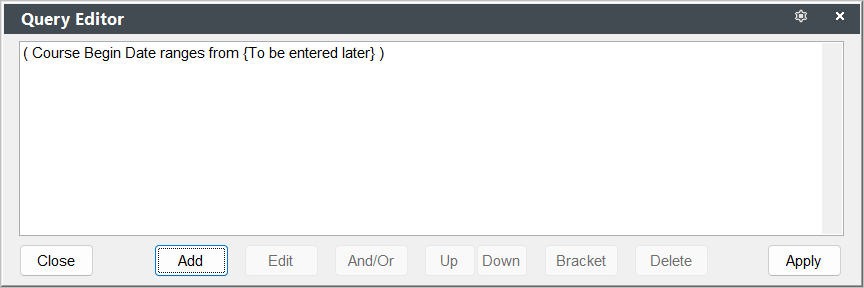
You can now edit the query elements.
Add Additional Elements
To add another element to a query:
- Click the Add button.
- Continue with steps 4-6 of the query process.
- When you are returned to the Query Editor window, you may need to switch the connector using the And/Or button. The default connector is And.
- And - means that BOTH items must be true for a record to be included in the result.
- Or - means that if ‘EITHER ONE’ of the items is true it will be included.
Edit Query Elements
To edit a query element:
- Click the element you want to edit to highlight it.
- Click the Edit button.
- The Query Condition window opens for you to edit the element (steps 4-6 of the query process.
- Once you are returned to the Query Editor window, click the Apply button to save your query changes.
Delete Query Element
To delete a query element:
- Click the element you want to delete to highlight it.
- Click the Delete button.
- Click the Apply button to save your query changes.
Move Query Elements
To move a query element:
- Click the query element you want to move up or down to highlight it.
- Click the Up or Down button to move the element up or down.
Connector or Brackets
When moving queries, you may also need to change the connector (And/Or) or re-bracket elements.
Multiple Element Connectors
You may occasionally need to create a query with a combination of elements. For example, you need courses between two dates except for courses which have "MGT" in the course code AND are offered by a specific department.
The most important thing to keep in mind is whether you want one, some, or all the conditions to be true:
All conditions must be true - make certain you use the AND connector. This means that if any single condition is not met, the record is not included (e.g. the course must begin between the two dates, AND not include "MGT" in the course code, AND have a specific coordinator).
One of the conditions must be true - use the OR connector. This means that if the record meets one of the conditions, it will be included (e.g. the course must begin between two dates, OR must not contain "MGT" in the course code, OR must have a specific coordinator).
Combination of conditions must be true - you may need to use a combination of connectors along with the bracketing feature to govern how the query is analyzed.
Bracket Query Elements
Some queries cannot be reliably used unless elements are bracketed to determine the order of execution of the elements. Conditions inside the brackets will always be evaluated before any conditions outside of the brackets. If you are using a combination of ANDs and ORs you should ALWAYS use brackets!
To insert brackets:
- Click the first query element you want to bracket to highlight it.
- Click the Bracket button.
- Enter a parenthesis in the first field:
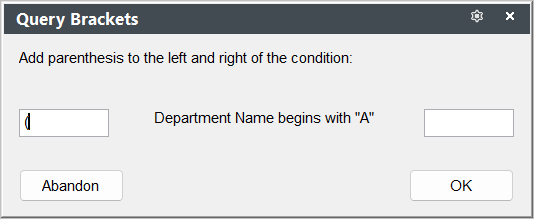
- Click the OK button.
- Click the last query element you want to bracket to highlight it.
- Click the Bracket button.
- Enter a parenthesis in the last field:
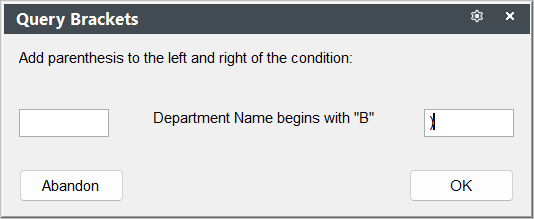
- Click the OK button.
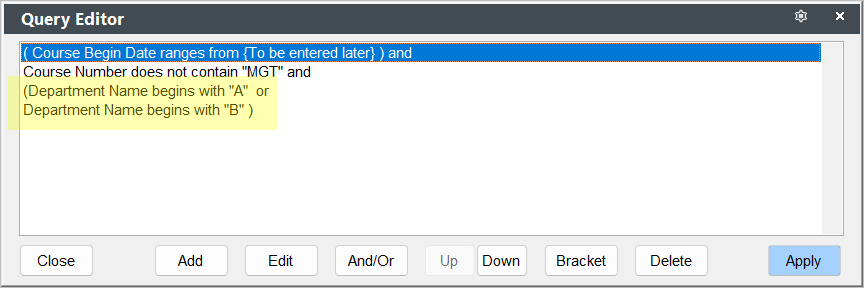
You're conditions will now be bracketed (i.e. parenthesis are placed around the conditions):