

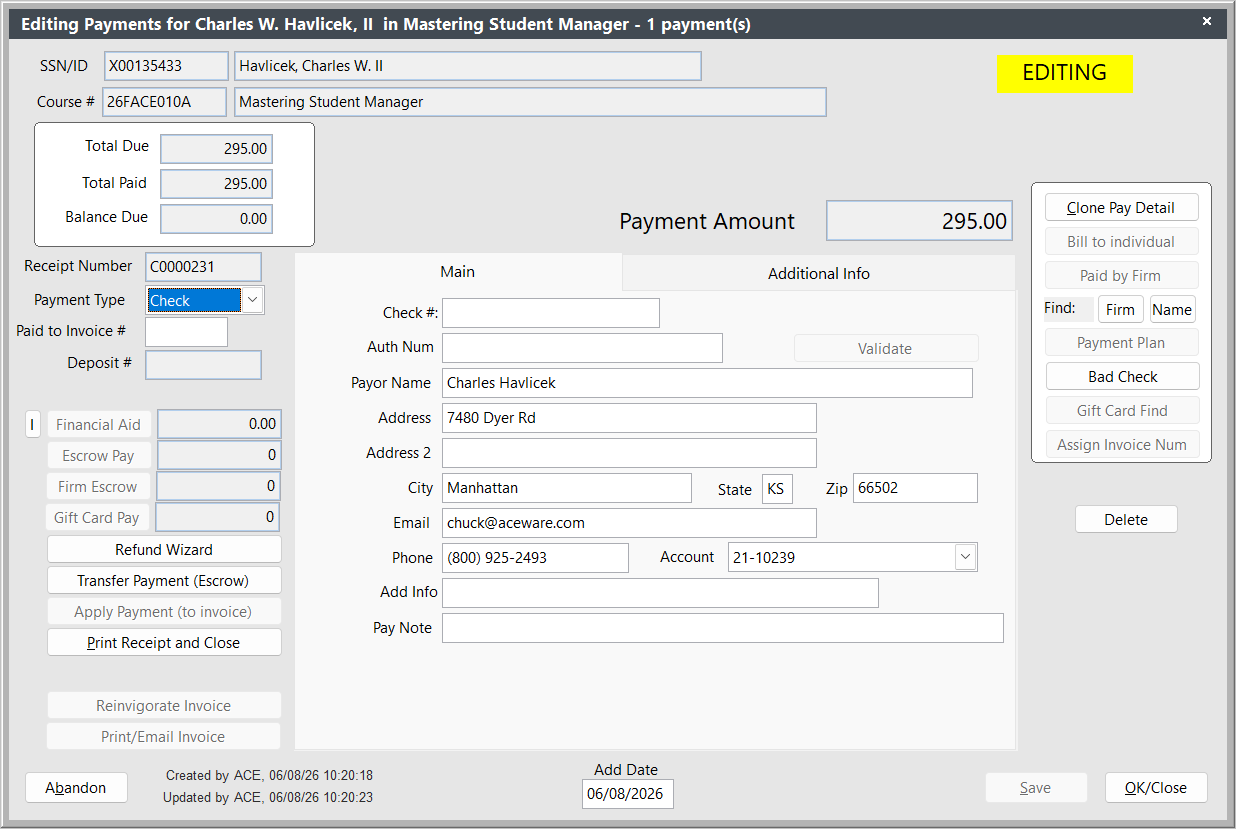
Payment Screen
Payments are associated with specific registrations.
The Payments screen consists of 2 tabs:
- Main - payment type, amount, details.
- Additional Info - UDFs and additional information that some payment services write to the payment record.
To access the Payment screen, open an individual's registration record then click the Payments button.
Mouse over field for Field Name. Go to Data Structures to see more field information.
Payment Types
Pytype stores a 1-character value denoting the stated payment type:
- 1=Cash
- 2=Check
- 3=Billing
- 4=Visa
- 5=Master card
- 6=Discover
- 7=*User Defined (Normally Used for American Express credit cards)
- 8=Void
- 9=Refund
- A=*User Defined
- B=*User Defined
- C=*User Defined
- D=*User Defined
- E=*User Defined
- F=*User Defined
- G=*User Defined
- H=*User Defined
- I=*User Defined
- J=*User Defined
- K=*User Defined
*User Defined are set up in Payment Preferences.