Creating a Query
To create a new query:
- On the Query List Manager window, click the Add button.
- The Query Editor window opens for you to add query elements.
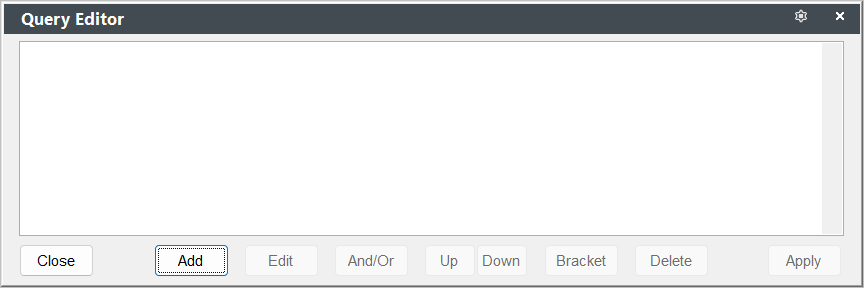
- Click the Add button to add a query element.
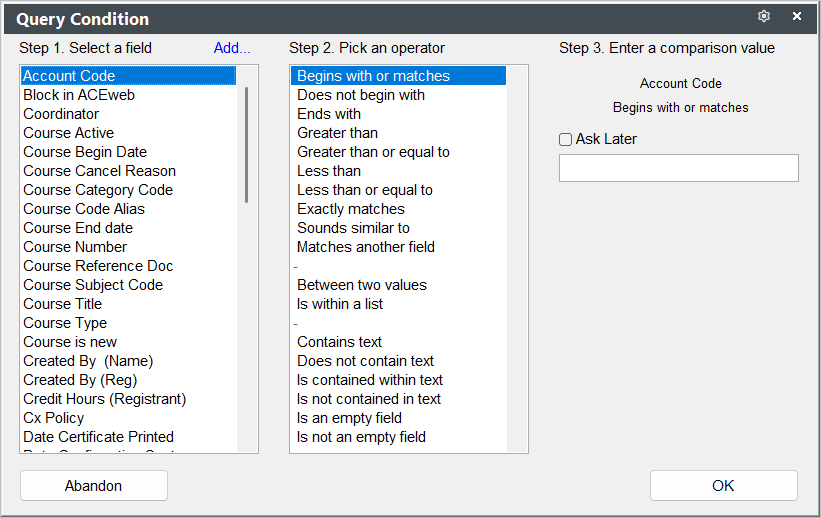
- In Step 1: Select a field, the available query fields for this report area are listed. Select the appropriate field from the list (e.g. for courses between two dates, select Course Begin Date).
Field Not Listed?
If the field you want is not listed, you may be able to add it with the Add option.
- In Step 2: Pick an operator, the operators for the field you selected in Step 1 are listed. Select the appropriate operator (e.g. for a courses between two dates query, you would pick 'Between two dates').
- In Step 3: Enter a comparison values*, the values you are searching for are entered.
Most of the time you should select Ask Later. This keeps the query as generic as possible so that it can be used over the long term (e.g. if you enter dates instead of selecting Ask Later, every time you run the query it will only report courses which begin between those two dates).
- You're returned to the Query Editor window.
- If you are finished adding query elements, click the Apply button.
- If you need to add more query elements, click the Add... link to add another element.
For more information about adding multiple query elements, see the Editing a Query topic.
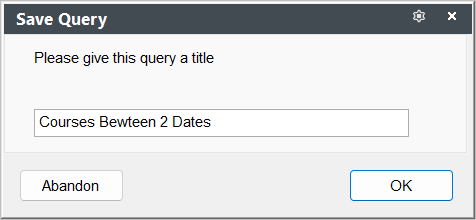
- When you click the Apply button, you will be asked to enter a title and save your query. Enter the title then click the OK button.