

Mass Emailing
Send Mass E-Marketing emails from Student Manager to a targeted group of Names with the Mass Email Wizard.
The wizard is accessed via a report that includes the individuals you want to mass email. This is usually best accomplished from where you can query on past course history, interest codes, area of residence, etc.
Note
You may select another report area from which to send mass E-Market emails, but the report area MUST have email address information included in it.
Send Mass E-Marketing Email
To send a mass E-Marketing email to individuals, you first run a Mailing Labels report.
Run Report
- Select .
- Check Additional Reports on the Mailing Labels Report Options screen then click the OK button.
- Select and run the appropriate query.
- Select the additional report called Mass eMail Launcher (if you don't have this report in your system, please call your ACEware technician for a copy).
- The Print Preview window opens. This report displays the Name, Email address, and Phone numbers for all individuals in the report.
- Close the Print Preview window and print the report (if desired).
Mass Email Wizard
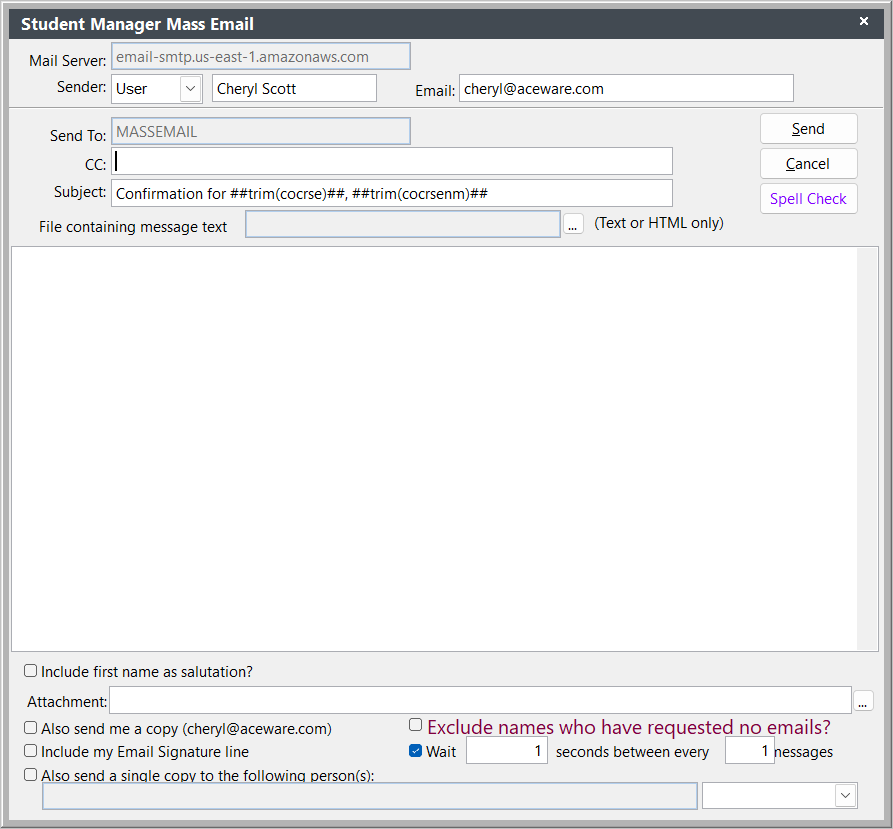
- The Mass Email Wizard screen opens next.
- If necessary, edit the Email Subject, Sender E-mail, and Sender Name entries.
- If you have a file with the message, click the ... button next to the File Containing Message Text field and select the file.
- If you want to include a salutation option, click the Include First Name As Salutation? box. When you check this box, another field appears. By default, the field has the First Name field entered. If you want to use the First Name field as the salutation, continue to the next step. If you want to use a custom salutation, enter the custom expression. For example if you wanted to use the Name Salutation and Last Name fields with a space in between them, you would enter:
nmsalut+' '+nmname3
- If you want to include attachments and/or your email signature, check the appropriate boxes.
- If you want to send staff a BCC, select them from the drop down (lower right).
- If your ISP limits the number of emails you can send in an hour, check the Wait box then enter the number of seconds to wait between each email sent. For example, if you are limited to sending 100 emails per hour, you could set it to wait 1 second between ever 1 email. That will force the system to send only 60 per hour.
- Click the Send button.
HTML Formatted Emails
You can use HTML to format your message. If using HTML, your email message MUST be enclosed in the opening <html><body> and closing </body></html> tags. E.g.:

You can use our online Create HTML Email ↗️ tool to create your HTML-formatted text then paste it into the Message field.