

Add a Student Manager User Record
Create new User records from Password Maintenance.
- Select .
- Click the Add button on the Explorer window.
- Enter a User ID.
User ID Restrictions
- The user name can be up to 8 characters in length.
- The user name can only contain letters and numbers.
- The user name cannot contain punctuation marks or symbols.
- Enter a Password.
Password Restrictions
- The password can be up to 29 characters long.
- The password can consist of upper case letters (e.g. ABC), lower case letters (e.g. abc), numbers (e.g. 123), and symbols (e.g. #$@%).
- Your Student Manager administrator can enable other password restrictions.
- Confirm the password the press the TAB key.
Password Verification
After entering it in the first password field, press the TAB key or click the Password Verification field to enter the password again in the Confirm field.
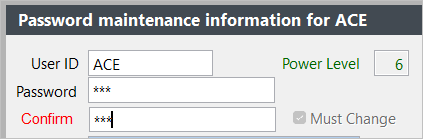
- Check the Must Change field IF you want the user to change the password the first time they log in.
- Enter the user’s full name, email address, and phone number.
- Select the appropriate User Group from the Group drop down list.
- Enter the user's email email signatures (the user can edit this information at a later time through ).
- If you don't want users to be able to edit their preferences, uncheck the Allow Edit of Preferences box on their user record.
- Click the Save button.