

Registering an Individual in a Course
The recommended method for registering individuals in Student Manager is through the Names module. This allows you to verify and make any necessary changes to the individuals’ contact information before enrolling them.
- Open the Name Explorer, and find the individual's Name record.
- With the name highlighted, select the Registrations tab.
- Click the Add button.
- Select the appropriate course.
- Select the registration options:
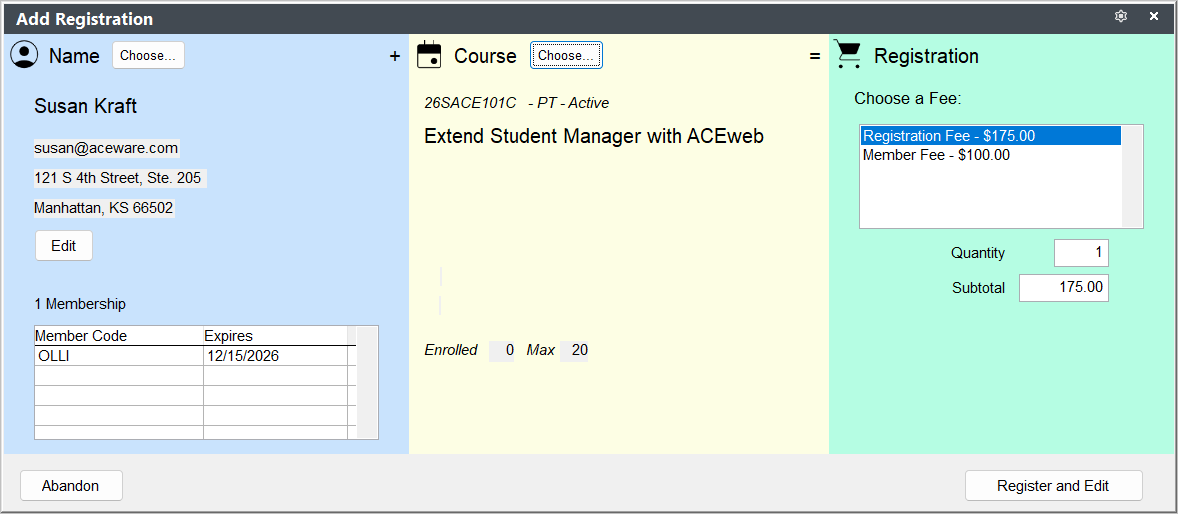
- Click the Register and Edit button.
- The Registration screen opens. You can now edit the registration, as needed (e.g. add Additional Charges, Fee adjustments, etc.).
- Click the Save Changes button.
Main Fee Assessed
The 1st Main Fee set up in Course Fees will be assessed to the registration unless:
- the individual has a fee rate specified in the individual’s Fee Category field--AND--that fee has been set up in the course record. If so, the individual will be assessed their qualifying fee instead.
- you have set up an Early Bird fee that is still available. If so, the individual will be assessed the early bird fee.
- the individual has an active membership. If so, they will be assessed the correct membership rate--IF--a membership rate has been set up in the course record.
Assess Different Main Fee
You can assess a different Main Fee by selecting the appropriate fee from the Fee list on the Add Registration screen:
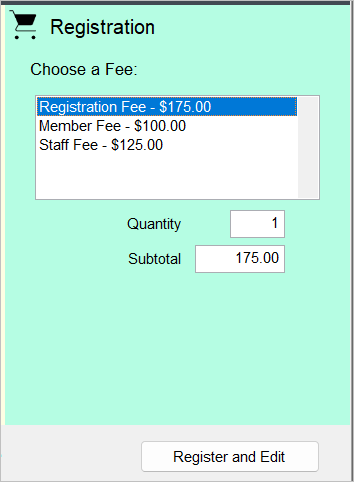
Or from the Fee drop down list, if editing the registration:

Maximum Met
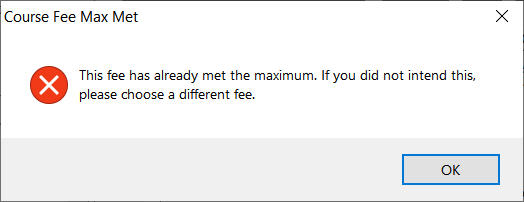
If the max has been met on the fee you select, you will be warned:
Multiple Seats to a Registration
You can charge mulitpe seats to a registration by entering the number of fees to be charged in the Fee Number field (to the right of the X label):

When you tab out of the field, the Course Fee Amount will be multiplied by the Fee Number and the total will be entered in the Registration Fee Amount field:

Note
The is a way for someone to pay for multiple seats. However, there are no Names associated with those multiple seats. If you also need Names, you must register them in the course.
Assess Custom Fee Amount
For organizations using the Allow Edit of Fee Amount on Registration preference (on Register Preferences), you can assess a custom fee amount. Enabling this preference allows users to enter the custom amount in the Course Fee Amount field (to the right of the @ label):

When you tab out of the Course Fee Amount field, the Registration Fee Amount (and Total Due) will be updated:
