

Assign Proxy
The Assign Proxy option allows you to assign a proxy person to the registration so that person can go online via ACEweb and pay the registration's outstanding balance, without logging in as the registrant. It's mainly used when a family member wants to pay another family member's registration, or when a firm's contact person wants to pay an employee's registration.
Assign a Proxy
- Click the Assign Proxy button on the Registration record.
- Find and select the Proxy person.
- When you are returned to the Registration screen, the Reg. by-[person] message appears below the Totals section:

- Click the Save Changes button to save your changes.
Grouped Registrations
Assigning a proxy will assign the proxy to all registrants in the group. If the proxy is also registered, it will assign the proxy to that registration too. This is required for the Email Link to Pay Group Balance feature.
Change a Proxy
You can change a proxy on registrations. For example, when the contact person of a firm is replaced with a new contact person and you need to change the proxy from the old to the new contact.
To change the Proxy on a registration:
- Click the Reg. by-[person] value on the Registration record.
- Find and select the new person.
- The new person will be listed as the Reg. by-[person] value.
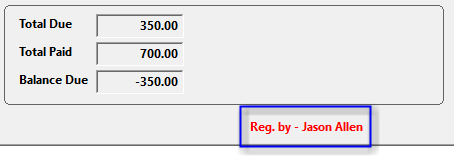
- Click the Save Changes button to save your changes.
Grouped Registrations
Changing a proxy changes it on all registrations in the group.
Remove a Proxy
To remove the proxy from a registration:
- Right click the Reg. by-[person] value.
- Click the Save Changes button to save your changes.
The Reg. by-[person] value is removed and the Assign Proxy button becomes visible.
Grouped Registrations
Removing a proxy removes it from all registrations in the group.