

Faculty Preferences
Preferences that control instructor record behavior.
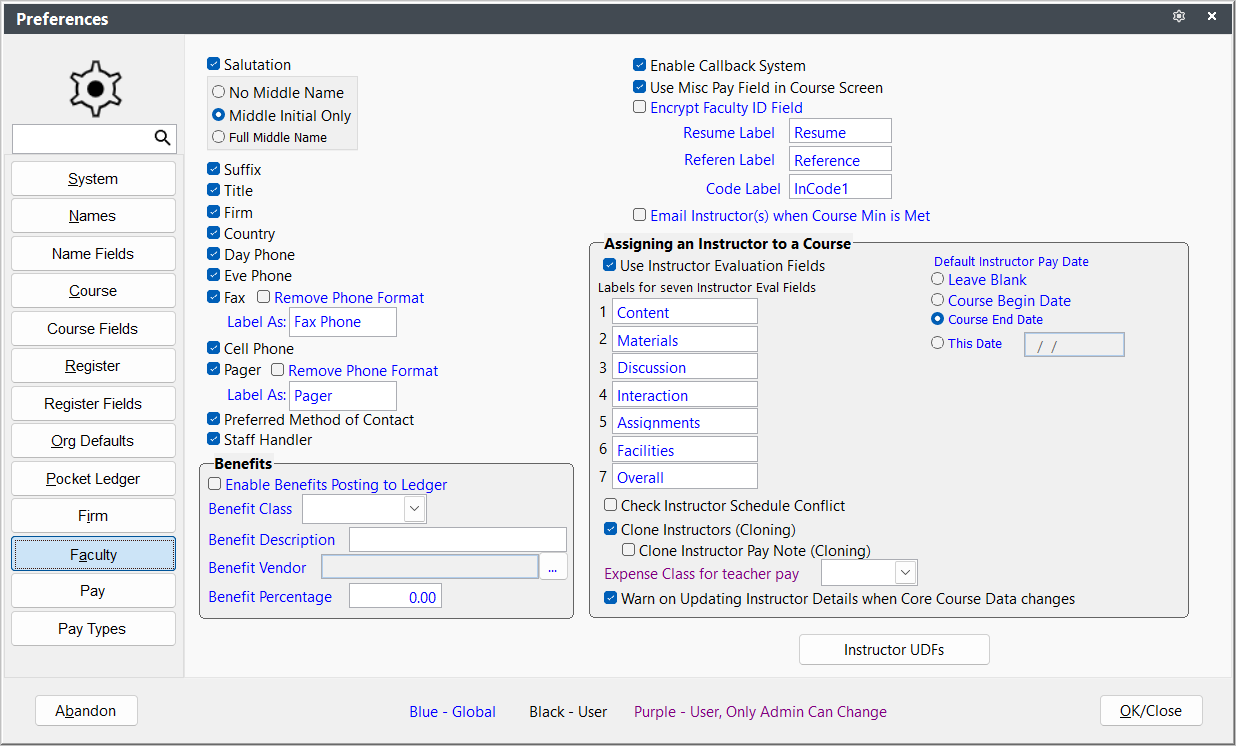
Enable/Disable Fields
If you don't intend to use a field(s), uncheck the box to the left of the field name. Disabling fields you don't use allows you to increase data entry productivity (e.g. data entry personnel won't need to tab through the field(s) in which they don't enter data to get to the ones they do).
Faculty Module Behavior
- Email Instructor(s) when Course Min is Met - if checked, the system will email the instructor(s) when the course enrollment has met the minimum.
- Enable Callback System - if checked, you can set Callbacks for the instructor.
- Encrypt Faculty ID Field - enable encryption of the Faculty FEIN ID field.
- Label the Resume, Reference, and Code fields.
Assigning an Instructor to a Course
- Check Instructor Schedule Conflicts - enables a check for schedule conflicts when you assign an instructor to a course.
- Clone Instructors (Cloning) - if checked, clones instructors assigned when cloning the course record.
- Clone Instructor Pay Note (Cloning) - if checked, clones instructor Pay Notes when cloning the course record.
- Default Instructor Pay Date - determine the default date for an instructor to be paid.
- Expense Class for Teacher Pay - set the default Expense Classification code for Faculty Pay records posted into Pocket Ledger.
- Label Instruction Evaluation Fields (viewed on course Instructor tab).
- Use Instructor Evaluation Fields - if checked, evaluation fields appear on the course Instructor tab. You can also set labels for each field.
- Warn on Updating Instructor Details when Core Course Data Changes - if enabled, a message will pop up asking if you also want to update the Instructor Venue information when you change course information such as title, begin date, time, hours, and location.
Benefits
You can enable the Benefits option to add a Pocket Ledger record for Instructor Benefits that are paid when you post the Instructor Pay record to Pocket Ledger. For example, amount paid for instructor's income tax, FICA, etc.
To enable the option:
- Check the Enable Benefits Posting to Ledger box.
- Select the Benefit Class (expense classification code) to be assigned to the Benefits record.
- Enter the description to be used for the Benefits record in the Benefits Description field.
- Select a Vendor, if desired.
- Enter the percentage of the Total Pay in the Benefit Percentage field. The system will use this to calculate the Benefit amount.