

Bookmark a Course
You can bookmark courses to more easily find them in the Course search screen.
Bookmark a Course
To bookmark a course:
- Open the course record.
- Click the Bookmark icon in the lower left of the course screen (highlighted in green):

The course is added to the Bookmarks list in the Quick Filter of the Course search.
Remove a Bookmark
To remove a course from the Bookmarks list:
- Open the course record.
- Click the Bookmark icon in the lower left of the course screen (highlighted in green):
The course is removed from the Bookmarks list in the Quick Filter of the Course search.
TIP
The Bookmark icon is a toggle--it adds or removes the course from the Bookmarks list.
Clear All Bookmarks
To clear all bookmarks:
- Open the Course Explorer.
- Select the Bookmarks Quick Filter.
- Click the More button.
Right-Click List
You can also right-click in the list area to bring up the menu.
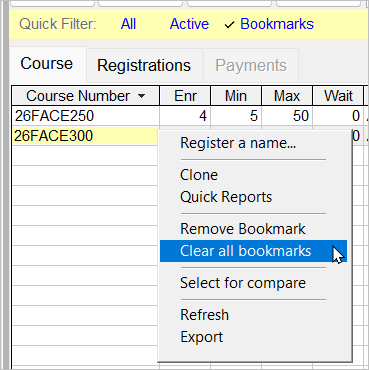
- Select Clear all bookmarks.