

Add Records
There are several ways to add records to a table:
File > New Menu
Select an option from the File > New menu to create a new record in the selected table. For example, to create a new Name record, select .
Module Menu
Select Module > appropriate module > Add to create a new record. For example, to create a new Course record, select .
Quick Launch Menus
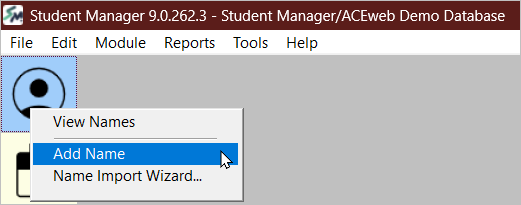
Some Quick Launch icons provide a right-click menu that includes an Add option. This is the Names icon example:
Explorer Window
You can add records from the Explorer Window by clicking the Add button.
Shortcut Key
Use the appropriate shortcut key from the Main Student Manager screen to create a new record. For example, to create a new Name record, press ALT+A.