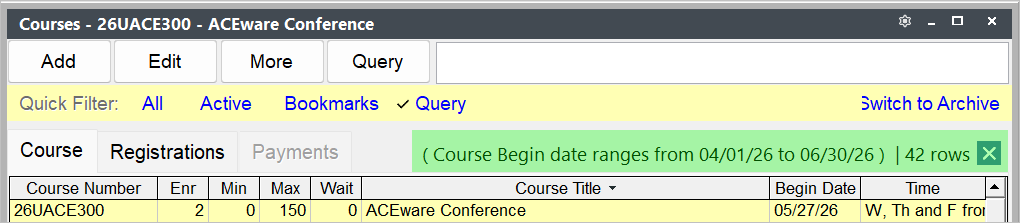
Search Queries
If you need to search for records that are not in the Search keys, you can use the Query option.
Run Existing Query
- Click the Query button.
- If desired, select an existing query from the Saved list. This example is from the Course Search.
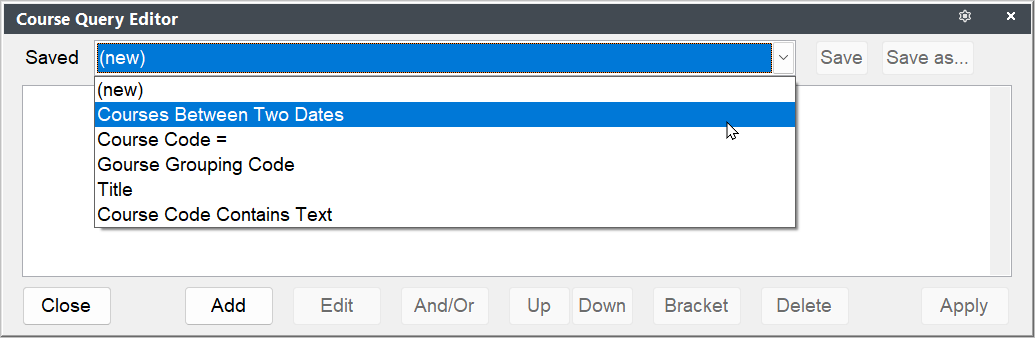
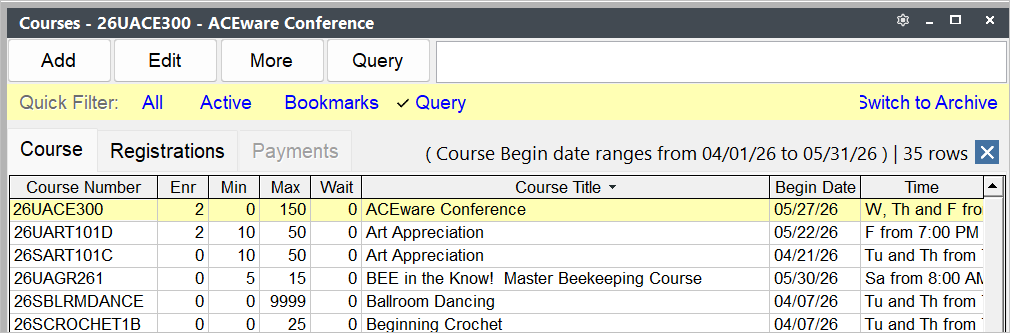
- Click the Apply button to apply the query. If you selected a query that needs parameters (e.g. course between two dates), the Enter Comparison Values box opens for you to enter the values. When you click the OK button, the query is applied:
TIP
The Query window will stay open. If you selected a query that asks for comparison values, and you want to change the query search criteria, click the Apply button again and enter a new set of values.
Add Parameters to Existing Query
- Select the query you want to run from the Saved list.
- Click the Apply button--this will open the Enter Comparison Values window for you to enter the query values. This will run the selected query for you.
- Click the Add button to add a second query.
- Select your field from the Step 1. Select a Field list.
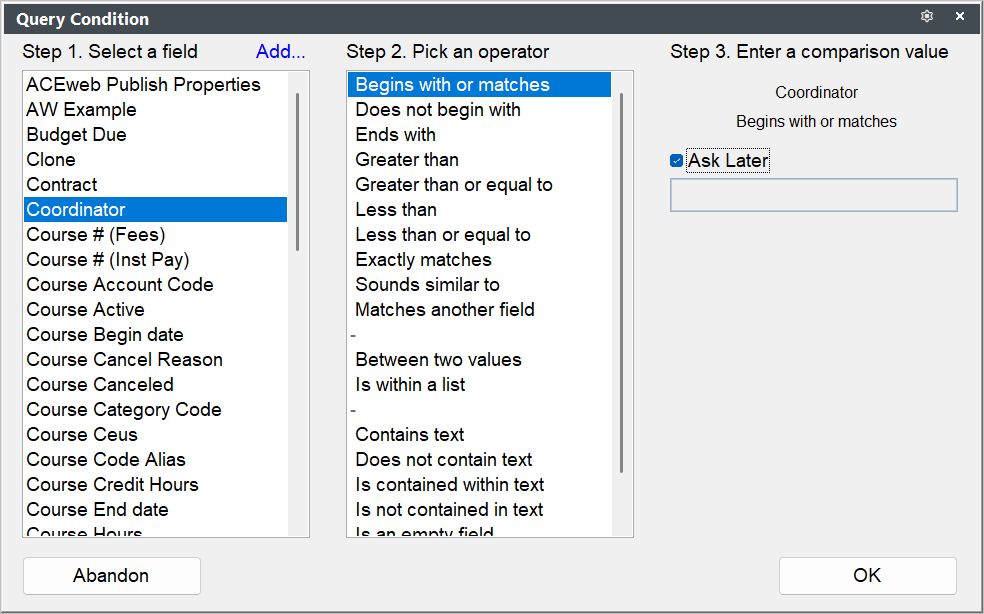
- Select the operator from the Step 2. Pick an Operator list.
- Enter your comparison value in the Step 3. Enter a Comparison Value section.
- Click OK to save your query.
- When you are returned to the Query Editor, click the Apply button to apply the second condition.
Multiple Element Connectors
If your query contains multiple elements (e.g. courses between two dates and offered by a specific department), you may need to select a different connector.
The default connector is AND. If your query needs to be OR, click on the first element, click the And/Or button to switch the connector.
Bracket Query Elements
Some queries cannot be reliably used unless elements are bracketed to determine the order of execution of the elements. Conditions inside the brackets will always be evaluated before any conditions outside of the brackets. If you are using a combination of ANDs and ORs you should ALWAYS use brackets!
To insert brackets:
- Click the first condition
- Click the Bracket button.
- Enter an opening parenthesis
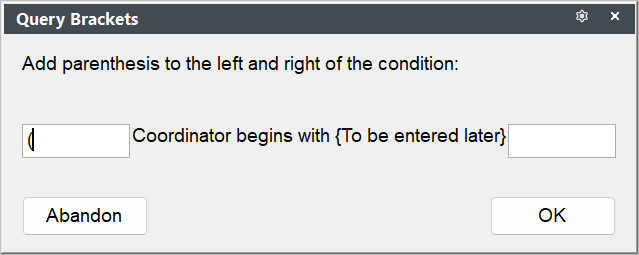
- Click OK
- Click the second condition
- Enter a closing parenthesis
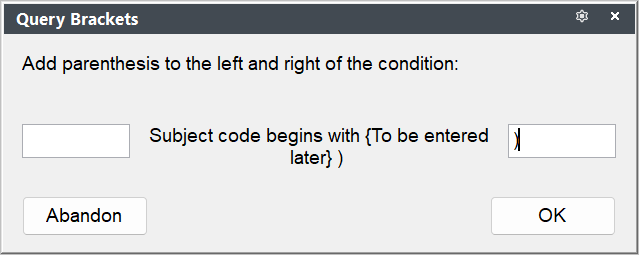
- Click OK
You're conditions will now be bracketed (i.e. parentheses are placed around the conditions).
Moving Elements
If you need to move an element up or down:
- Click the element you want to move.
- Click the Up or Down
WARNING
If you have bracketed elements, you may need to adjust the brackets after moving elements up or down.
Save Query
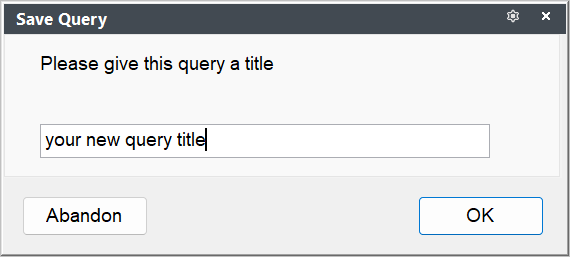
If you have created a query you want to use repeatedly, you can click the Save As button to save the query.
You will need to enter a name for your query:
Clearing Query
The query will continue to be applied until you clear it.
To clear the query, click the X at the end of the Query value: