

Check for Updates
You can check for a newer version of Student Manager from .
If a newer version is available, you can download and update it or read the Release Notes.
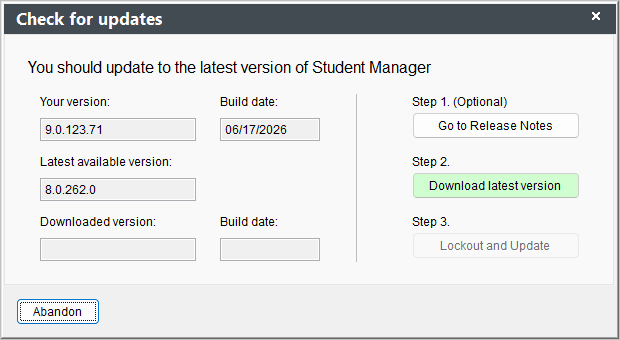
Download/Apply Update
To check for, download, and apply a Student Manager update:
Click the Go to Release Notes button to view version update notes. The system will open the Release Notes in your preferred browser (set in System Preferences).
Click the Download latest version button to download the latest version. The exe will be downloaded to the Updates folder in your Student Manager directory.
Click the Lockout and Update button to open the Administrator System Lockout window. It will check for other users and close them out of the system. When they are all out, it will apply the update and restart Student Manager for you.
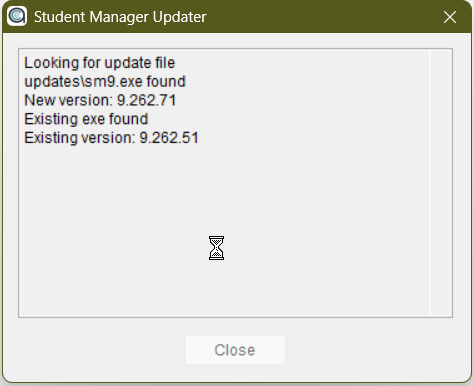
Check for Updates Message
You can enable the Show Update Message if you haven't updated in the last 90 days preference (System Preference) if you want to be notified when new versions are available.
If enabled, Student Manager will check for a new version on Tuesdays, when you log into the system.