

Updating ACEweb from an Older Version
If you are running an older version of ACEweb (3.5.076/4.0.076 or earlier), use these instructions to update to the current version.
You can then use the regular update instructions for future updates. However, if you are running the ISAPI web connection handler, you may still need to use these instructions for future updates.
We strongly recommend switching to the .NET web connection handler. Talk with your ACEware technician about making the switch during your next ACEweb update.
Find your ACEweb Database Type/Version/Web Connector
The ACEweb About page will tell you the Web Connector and ACEweb version you are running.
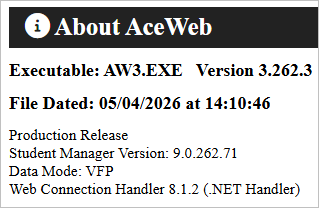
- Executable - check this attribute to determine which database type you are running (i.e. aw3.exe is the default database type; aw4.exe uses SQL or Postgres database).
- Version - this attribute states the ACEweb version you are running.
- Web Connection - this attribute states the web connector you are running (.NET or ISAPI Handler).
Apply Update
- Download the update zip from the ACEware website:
Customer Credentials
You need a current SMA and the Customer credentials to download the update files. Contact your ACEware technician if you don’t have them.
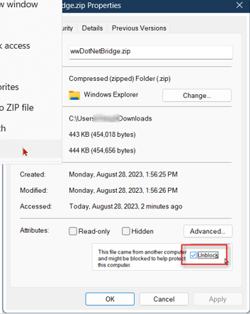
- Unblock the zip file if necessary.
- Right-click the zip file.
- Choose Properties from the menu.
- Check the Unblock box.
- Click the OK button.
- Stop IIS by opening a Command Prompt window and entering the following at the prompt:
IISRESET /Stop
Keep the Command Prompt Open
Don't close the Command Prompt window — you will need it again in a later step.
- Unzip the files from the zip's folders to the following locations:
- ACEweb Folder - unzip the contents into the ACEweb folder (e.g.
c:\inetpub\aceweb).- Wconnect Folder - unzip the contents into the Wconnect folder (e.g.
c:\inetpub\wwwroot\wconnect).- Templates Folder - follow the Updating Templates section below.
In the
inetpub\acewebfolder, find the exe file (aw3.exe if you are using the default database type; aw4.exe if you are using the SQL or Postgres database type) and double-click it to start it, then shut it back down. This initializes any new settings and updates the log file structures.Restart IIS by entering the following at the Command Prompt window:
IISRESET /Start
- Recompile all .awp type templates.
Update Templates
Backup Existing Files
We STRONGLY encourage you to back up your existing files before replacing them with the ones in the aw3update zip (e.g. make a backup of the wconnect folder and its contents).
- Customized Templates - templates in the zip have default elements. If you customized your current copy of a template, you must re-apply that customization after updating the specified template.
- Templates Folder - update your template if the file in the zip's Templates folder is newer than the copy in your Templates folder (e.g.
wwwroot\wconnect\ace), or if your ACEware technician advises you to update it.
New Templates
The zip may also contain new templates — add those to the Templates folder.
Alternate Interfaces
Complete the following for each Alternate Interface you have.
Update PRG/FXP Files - unzip all the files from the
Aceweb\acewebfolder in the update zip into your awpX folders ininetpub\aceweb\aceweb\. For example, unzip fromaw3update.zip\Aceweb\acewebinto theinetpub\Aceweb\aceweb\awp1folder.You may need to update other templates in your Alternate Interface folders. Update your Alternate Interface template if the file in the zip's Templates folder is newer than your copy.
Debugviewer.awp
The Debugviewer.awp file only needs to be in your main interface Templates folder (e.g.
\wconnect\ace). You do NOT need to add it to the alternate interface templates folder.
- Complete Step 7 of the Update Instructions for each Alternate Interface. The AWP Compiler link for the Alternate Interface will have the appropriate script map (e.g.
awpcompiler.awp1).
Quick Pick
If you have the Quick Pick module, you may also need updated files. You can obtain update files and instructions to update Quick Pick from your ACEware technician.