

Updating ACEweb
These are instructions for updating ACEweb. Before updating, you will need to know the version you are currently running, the database type, and web connector.
Path/Database Type/Web Connector
- Path - the default install path for ACEweb is c:\inetpub. If you installed ACEweb in a different location, you will need to adjust the instruction paths accordingly.
- Database Type - if you are running the default database type, the executable is named aw3.exe; if you are running the SQL or Postgres database type, the executable is named aw4.exe. If you are running the SQL or Postgress database type, you will need to adjust the instruction exe name accordingly.
- Web Connection Handler - if you are running the ISAPI Handler or an earlier version of ACEweb(3.5.076/4.0.076 or earlier), you will need to manually apply the update files.
- Web Connection Version - if you are running a 7.x version, you will need updated DLLs. Replacing DLLs requires stopping IIS.
Find your ACEweb Information
The ACEweb About page will tell you the Web Connector and ACEweb version you are running.
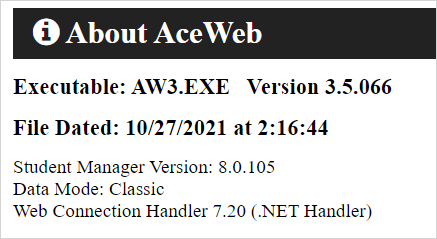
- Executable - check this attribute to determine which database type you are running (i.e. aw3.exe is the default database type; aw4.exe uses SQL or Postgres database).
- Version - this attribute states the ACEweb version you are running.
- Web Connection - this attribute states the web connector you are running (.NET or ISAPI Handler).
- Web Connection Version - the Web Connection attribute also states the handler version you are currently running. E.g. Web Connection Handler 8.1.2 in the above image example.
One-time Setup
If your ACEweb server is already set up for easy updates, you can skip to the next step. Otherwise, complete this one-time setup.
- In your web.config file in the inetpub\wwwroot\wconnect folder, verify that the UpdateFile key points to the correct path/file:
<add key="UpdateFile" value="C:\inetpub\aceweb\updates\aw3.exe" />

Executable
Don't forget, if you are running the SQL or Postgres database type, you will need to change the exe name in the add key value to aw4.exe (instead of aw3.exe).
Copy Files to Updates Folder
- Download the update zip to your ACEweb server's desktop:
- aw3.zip for the default database type.
- aw4.zip for the SQL or Postgres database type.
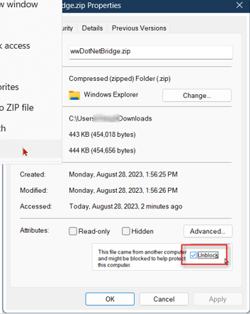
- Unblock the zip file if necessary.
- Right-click the zip file.
- Choose Properties from the menu.
- Check the Unblock box.
- Click the OK button.
- Open File Explorer and navigate to the
\inetpub\Aceweb\updates\folder. - Go to the desktop and open the zip file. You should have 2 File Explorer windows open now. E.g.:
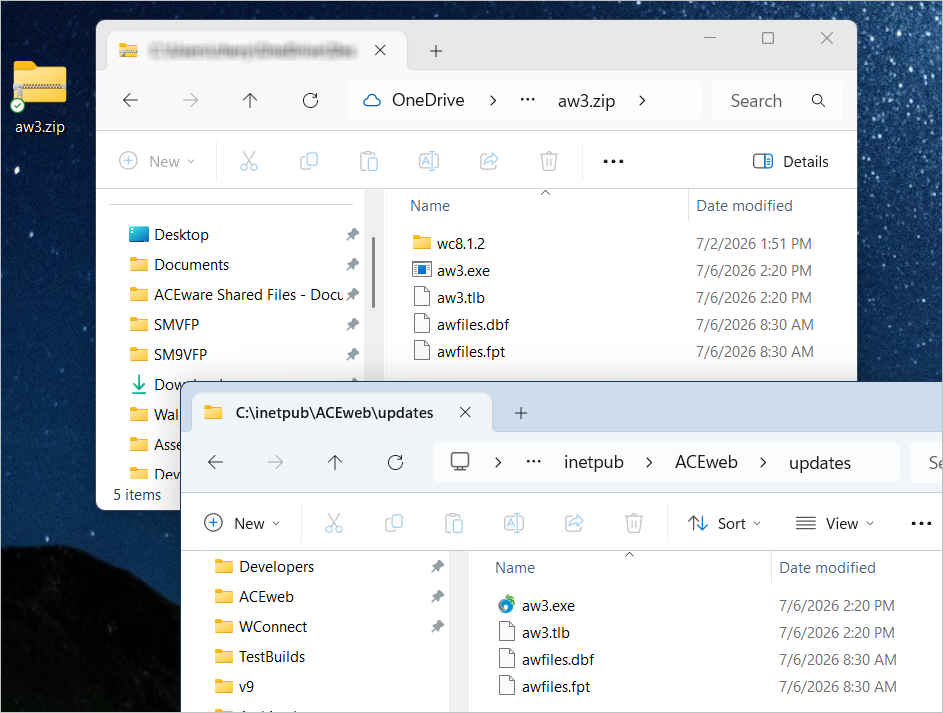
- If the zipped files already exist in
\inetpub\Aceweb\updates\, back up the installed version first. This lets you roll back the changes if needed.
- Get the installed version of
aw3.exeby right-clicking the\inetpub\Aceweb\Updates\aw3.exefile, choosing Properties, then the Details tab.- Create a new folder named for that version number in the
\updates\folder (e.g.updates\3.251.0\).- Move the existing
aw3.exe,aw3.tlb,awfiles.dbf, andawfiles.fptfrom the\updates\folder into the new folder (created in step b).
No Previous Updates
If this is the first time you have used these instructions to update ACEweb, you may not have any previous versions in the
\updates\folder.
To create the current version backup, follow steps a and b above, then make a backup of theaw3.exeandaw3.tlbthat are ininetpub\acewebfolder (these are your current version files) and copy them into theupdates\[version #]folder.
- Copy the zip's contents to the
\inetpub\Aceweb\updates\folder.
Update the Exe
How you update the Exe depends on what Web Connection Handler you are using (.NET or ISAPI).
.NET Handler
Open the Web Connection Server Maintenance page.
In the Module Administration section, click the Web Connection Module Administration link to open the Web Connection Handler Status Page.
Scroll down to Version and Updates section of the page.
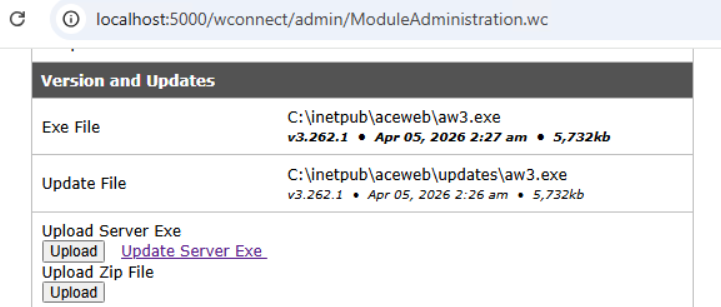
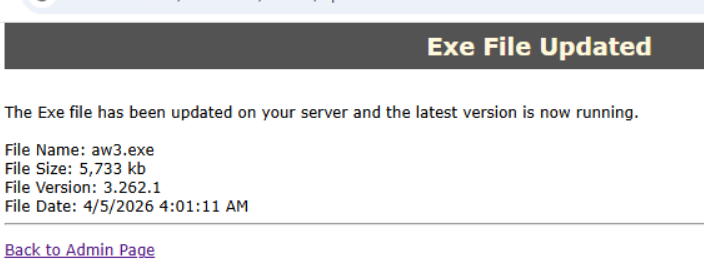
- Click the Update Server Exe button. You will see the Exe File Updated message if the update was successful.
ISAPI
Open the Web Connection Server Maintenance page.
In the Module Administration section, click the Web Connection Module Administration link to open the Web Connection Handler Status Page.
Click the Unload Servers link.
Copy the aw3.exe and aw3.tlb files (aw4.exe and aw4.tlb if running the SQL/Postgres database) from the
\inetpub\Aceweb\updates\folder into the\inetpub\Aceweb\folder.Go back to the Web Connection Handler Status Page and click the Load Servers link.
Updating DLLs
If your Web Connection Handler is earlier than 8.1.2 (e.g. 8.0 or earlier), you will need updated DLLs. Updating DLLs requires you to stop IIS first.
- Stop IIS by opening a Command Prompt window and entering the following at the prompt:
IISRESET /Stop
- The DLLs are in the wc8.1.2 folder in the
\inetpub\Aceweb\updates\folder. Copy the DLLs to the following locations:
- wc.dll - goes into
\inetpub\wconnect\folder- webconnectionmodlue.dll - goes into
\inetpub\wconnect\binfolder- wwdotnetbridge.dll - goes into
\inetpub\aceweb\folder- wwipstuff.dll - goes into
\inetpub\aceweb\folder
- Restart IIS by entering the following at the Command Prompt window:
IISRESET /Start
Update Other Files using FileManager.awp
The aw3.exe file contains most of the changes made to ACEweb. Occasionally, other system files and template files outside the exe change and need to be applied also.
These files might have small customizations on your site that can be hard to detect and are easily overwritten. To manage them, open the FileManager.awp page. E.g.
http://localhost/wconnect/FileManager.awpe shows information about System Files and Templates, including:
- Which files are missing (if any).
- Files that match the defaults.
- Files that match the previous version of the defaults.
- Files that don't match (these have either been customized, or are more than one version behind).
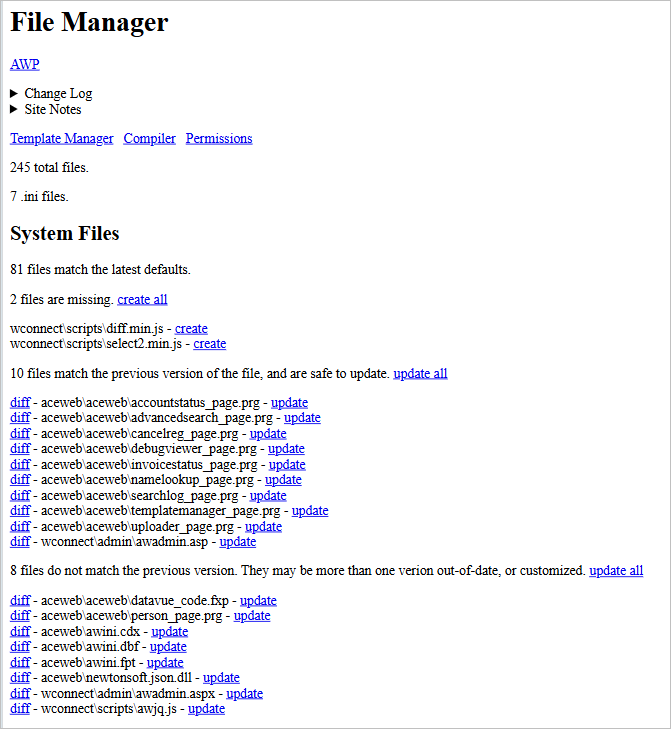
The File Manager pag
Review Before Updating
Review the Site Notes at the top of the page for any customizations on your site. You can review changes to a file by clicking the diff link to make sure you're not overwriting anything custom.
If you need updated System Files:
- Click the create all link (if files > 0).
- Click the update all link (if files > 0).
- Click the other update all link (if files > 0).
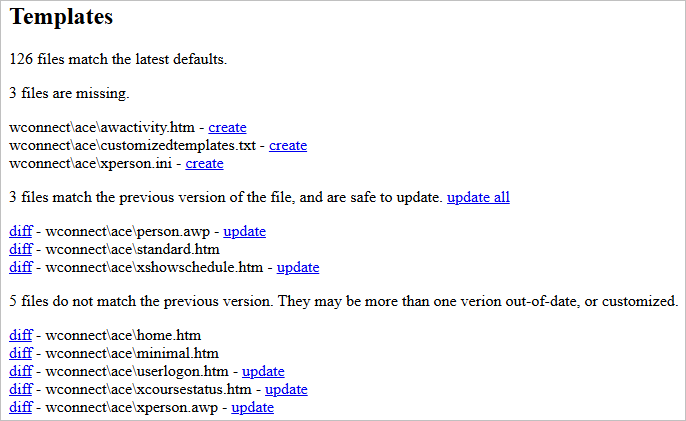
Template Files
Most customization happens in template files, so use caution when updating them. If you're not sure, skip these. Otherwise, updating or creating them works the same as System Files.
Compile Templates
Click the Compile link (at the top of the File Manager page) to open the AWP Compiler page to compile .awp type templates.
Backed Up Files/Templates
When you use the File Manager, updating files makes copies of the overwritten versions in the Aceweb\updates\[previous version]\ folder you created in step 5.b above. So you will also have backups of the updated files/templates.
About aw3.tlb
The .tlb file is the Type Library of the COM server. It might change when the WC version changes, but it doesn't need regular updating otherwise. Keep it with its aw3.exe when you can, but don't worry if the .tlb has an older date than the .exe in the \inetpub\Aceweb\ folder.
Alternate Interfaces
If you have any alternate interfaces, you will see links for them at the top of the File Manager page:
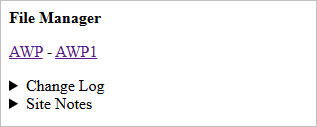
Click the appropriate link to switch to that interface and see if any files need to updated for it.
Quick Pick
If you have the Quick Pick module, you can also use the File Manager apply template update, if necessary.