

Code Validation
Garbage in - garbage out has become a computer cliché. It refers to collected data that becomes worthless if there is no coordination of how data is entered into the database.
To combat this problem, Student Manager uses data validation tools to ensure information conforms with rules set up for specific data elements.
How Validation Works
Many of the fields in Student Manager are automatically validated. Validated fields only allow pre-specified data, called Codes, to be entered in them.
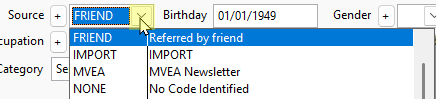
Most validated fields have drop down menus from which you select the appropriate code (access menu with the button to the right of the appropriate field):
Other validated fields have a search icon to the right of the field, as in the Firm field in this example:
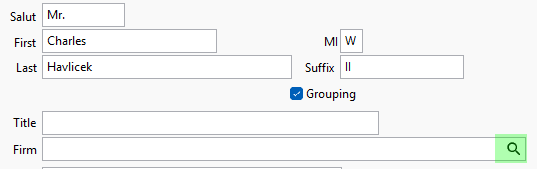
In these fields, you type in the code then tab out of the field. The system brings up the validation list for you to lookup a value. If it doesn't exist, you can click the Add button to create it.
Coding Rules
Code records must have a unique code. For example, each name record must have a unique ID #; each course record must have a unique Course Code; etc.
Certain records must exist in the database before you can assign them to other records:
- a Course must exist before you can register anyone in the course.
- a Name must exist before you can register them in a course.
- a Registration must exist before you can make a payment to the registration.
- a Location record must exist before it can be assigned to a course.
- a Catalog record must exist before it can be assigned to a course.
- a Faculty Manager record must exist before the instructor can be assigned to courses.
- a Zip Code record must exist before the zip code can be assigned to a Name or Faculty Manager record.
- a Firm record must exist before it can be assigned to a Name or Faculty Manager record.
Codes for validated fields must be defined (added to the field's Code list) before they can be used in records.
You can only use certain characters in Code values.
You cannot enter an invalid date into date type fields.
You cannot enter characters or symbols into a numeric type field.
You cannot enter characters, numbers, or symbols into a logical type field.
Optional Validation
Some fields offer optional validation — the entry must match a value in the field's Code list, but only if the Validate option is enabled on the module's Field Preferences. If not enabled, any value can be typed into the field.
- Salutation, County, and Country (Names) - enable on Names Fields Preferences.
- Reg Code, Reg Status, and Rgmisc Field (Registration) - enable on Registration Fields Preferences.
- Reg Adjustment Fee Descriptions - enable on Registration Preferences.
- Pay Additional ID - enable on Pay Preferences.
- City and County (Location) - enable on Course Fields Preferences.